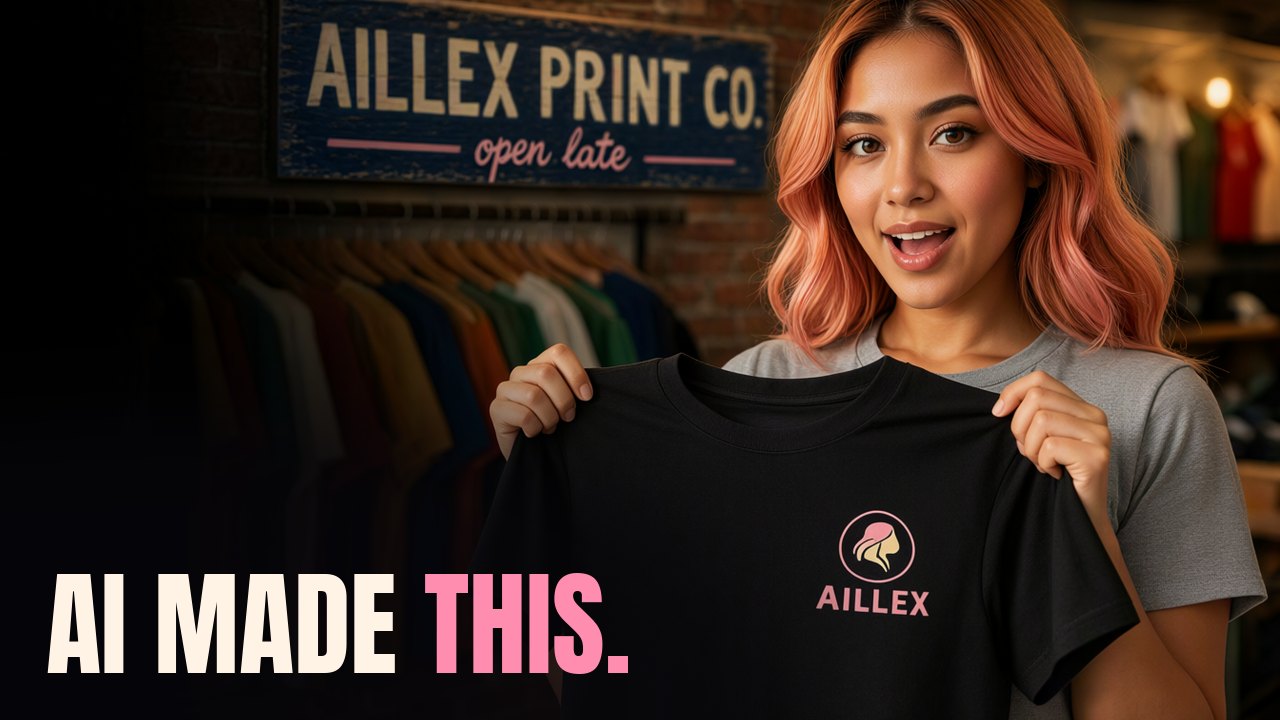
Image models love to print gibberish on signs and shirts. So for this episode I ran a small print shop, Aillex Print Co., and my creator placed five orders: a shop sign, a price board, a sticker sheet, our own logo on my shirt, and a window poster. Every order arrived on an order ticket, and Ming made those too.
This is the whole recipe, with the real prompts and everything that went wrong.
Presenter shots were generated with MiniMax H3, by MiniMax, used under the MiniMax H3 licence. Nothing generated by H3 was used to train anything.
The voice in the video is ElevenLabs v4, which runs in the cloud. The pictures and the video clips were made in ComfyUI on our PC.
Every number below is ours, measured on one RTX 5090 (32 GB), unless it says “reported”.
What you need
| model | its job in the shop | where it runs | speed on our card |
|---|---|---|---|
| Ming Image 0.1 | anything with words on it | ComfyUI on our PC | 7 to 12 s a picture |
| Qwen Image 2.1 | our real logo onto the shirt | ComfyUI on our PC | about 18 s an edit |
| MiniMax H3 | me wearing the shirt, talking | ComfyUI on our PC | about 3 min for three previews, about 4 min for the full-size take |
| Krea 2 Turbo (optional) | the same text jobs, for comparison | ComfyUI on our PC | about 6 s a picture |
| ElevenLabs v4 | the voice in the video | the cloud |
New to ComfyUI? Start with ComfyUI From Zero.
Install Ming Image 0.1
Ming Image 0.1 is a six-billion-parameter text-to-image model under the MIT licence. It needs ComfyUI 0.38 or newer, so update before you open the template. The official template is “Ming Image 0.1 Design”, text to image, and its notes list these files:
| file | folder | size |
|---|---|---|
ming_image_0.1_design_int8_convrot.safetensors | models/diffusion_models | 5.75 GB |
ming_image_0.1_ling_mini_2.0_int8_convrot.safetensors | models/text_encoders | 18.17 GB |
ming_image_vae_bf16.safetensors | models/vae | 242.1 MB |
qwen3.8_27b_w4a8.safetensors (the rewriter, optional) | models/text_encoders | 16.1 GB |
The int8 files are 8-bit weights, which is how it fits in less memory. Notice the text encoder is three times the size of the image model. Skip the last file unless you want the rewriter, which I’ll get to.
The graph we ran
We used the template’s sampler settings and fed our prompts in raw. As a node chain:
CLIPLoader (ling_mini int8, type qwen_image) -> CLIPTextEncode (your prompt) -> BasicGuider
UNETLoader (design int8) -> ModelSamplingFlux (max_shift 1.15, base_shift 0.5, your width and height)
  -> ModelAttentionBackend ("comfy kitchen attention")
BasicScheduler (simple, 12 steps, denoise 1.0) + KSamplerSelect (euler) + RandomNoise
  -> SamplerCustomAdvanced -> VAEDecode (ming_image_vae_bf16) -> SaveImage
There is no guidance scale to tune. The template runs a single BasicGuider, positive prompt only. We also tried plain PyTorch attention in place of the comfy kitchen setting, and both ran at the same speed.
At 1280×720 up to 1024×1280, a picture took 7 to 12 seconds. Across the shop run the typical picture took about ten.
The overnight test
Before the episode we gave Ming six text-heavy cards, among them two title cards, a dashboard, a chart and a sticker sheet. With two seeds and two attention settings, that made 24 pictures asking for 92 bits of text. An OCR text reader found 85 spelled right. Six of the seven misses were the reader’s fault, reading stacked headlines out of order or reading across two badges. One was a real spelling error.
The small text was the surprise. Dashboard labels, chart labels and values, and grey subtitle lines came out exact on all 16 cards that had them.
Order one: the sign, and the quote rule
One habit does most of the work. Put the exact words in quote marks, then say where they go and how they look. Not “a sign with the shop’s name”. Here’s the real prompt:
a hand-painted wooden shop sign hanging above a small print shop door, the words "AILLEX PRINT CO." in cream block letters across the middle, and a small line underneath reading "open late" in pink script, weathered navy-painted wood, brick wall, warm evening street light, photo
Four seeds, four signs, and both lines were spelled right on all four.
Now look past the sign. In one of them Ming painted a card in the shop window, and nobody asked for those words. It reads “PRINT SINCASING PRITYS”. Ming spells what you quote. Anything else it writes on its own is a coin toss, so if text shows up that you didn’t ask for, assume it’s nonsense and either quote it properly or say there is none.
The rewriter that ships switched on
The official Ming template does something you might not notice. Before your prompt reaches the image model, it goes through a second AI: Qwen3.8-27B, a 27-billion-parameter model, with a 2,366-character system prompt that casts it as a “senior visual designer”. It rewrites your sentence into a long layout spec. The switch for it, enable_PE on the main node, is on by default. The template’s notes do mention it, but it’s easy to run straight past.
We downloaded the 16.1 GB rewriter and ran three of the shop prompts both ways, same prompt and same seed. My one sentence about the sign came back as 2,388 characters of JSON. The first lines:
{
  "canvas_settings": {
    "aspect_ratio": "16:9",
    "ambient_lighting": "Warm, low-angle evening street lighting casting long soft shadows and highlighting the texture of the weathered wood and brick.",
    "image_style": "High-resolution photorealistic, cinematic, shallow depth of field, documentary photography"
  },
  "layers": [
    {
      "description": "Background wall composed of rough red-brown bricks with visible mortar lines, slightly out of focus to create depth, occupying the entire canvas behind the sign.",
      "coordinates": "cx: 0.500, cy: 0.500, w: 1.000, h: 1.000",
      "hierarchy_and_relation": "Base layer providing the environmental context and backdrop for the hanging sign.",
It goes on layer by layer, with positions and hex colours. The price board came back at 3,150 characters and the stickers at 1,828.
What it changed. The quoted words still came out right, on all three prompts. The rest of the picture got redesigned. The sign lost its shop door and the window card. The chalkboard price list turned into a tidy green chalkboard on a plain wall. The stickers barely moved. On our three prompts it didn’t make the text worse. It made the design decisions for us.
What it cost. On our card the rewrite on its own took between 400 and 1,012 seconds per prompt: 400 for the stickers, 541 for the sign, 1,012 for the price board. That’s seven to seventeen minutes of rewriting for a picture that takes about ten seconds. Wired into one graph the way the template does it, the 27B rewriter sat beside Ming’s 18 GB text encoder and overflowed the 32 GB card, and a single picture took 551 seconds for the sign and 746 for the price board. Starting ComfyUI with --highvram made no difference: 405 seconds, and the same text.
How to turn it off. Set enable_PE to false on the template’s main node, and your prompt goes to Ming exactly as typed. We built the graph above without the rewriter at all, so nothing can switch it back on.
Order two: the price board, and small text
Small text in neat rows is where Ming did best overnight, so the second order was a chalkboard price list. Quote every word and every number, and say it’s a list with the item on the left and the price on the right:
a chalkboard price list hanging on a print shop wall, the title "PRICE LIST" in large white chalk capitals at the top, then four rows with the item on the left and the price on the right: "T-shirts" with "$18", "Stickers" with "$3", "Posters" with "$12", "Tote bags" with "$15", neat hand lettering, a little pink chalk underline under the title, wooden frame, photo
Four boards, nine bits of text each, and all nine were right by eye on all four. The OCR reader stumbled once on the chalk lettering, which was its misread, not Ming’s.
Charts work the same way. The overnight chart asked for two bars labelled “Session 1” and “Session 2” with the values “4.5 s” and “3.6 s” at their ends. All five bits of text were right on all four renders, and the three-row dashboard card got all six of its labels and values right on all four.
Check every render by eye
Third order: a sticker sheet.
flat vector sticker sheet with three round badges on a white background: a pink badge reading "FRESH INK", a navy badge reading "LOCAL AI", and a cream badge with a pink border reading "SPELLED RIGHT", bold centered lettering, thick white border around each badge, simple and clean
The overnight test had a sticker sheet too, with badges reading NEW, LIVE and LOCAL AI. One render delivered all three plus a fourth badge nobody asked for, reading “AT FCT”. Great band name. Not our sticker.
That was one of three text glitches in those 24 pictures. Another printed the poster line “one smart assistant” twice, and a third mangled the number “10”. The OCR reader missed all three, because it checks whether the words you asked for are there. It doesn’t notice extra words, or a line printed twice.
The shop run was cleaner: 41 pictures and one slip, an order ticket reading “PRICE BOARD BOARD”. OCR called 116 of 134 strings exact and 12 more close, and the rest were mostly misreads of chalk and stacked lettering. So OCR is a useful first pass, but the final check is you, looking at every picture before it goes anywhere near a shirt. You can’t undo ink, which is also what the bonus shirt artwork says:
a t-shirt graphic on a plain black background, distressed screen-print style, the words "YOU CAN'T UNDO INK" in a bold arched headline, under a small illustration of a dripping squeegee, pink and cream ink only, centered artwork ready to print
Order four: our logo on my shirt, with Qwen Image 2.1
Here’s the rule for a logo. Never let an image model draw your logo from memory. It will invent one. Give it the real file.
Qwen Image 2.1’s edit mode takes up to ten pictures at once. Picture one was me in a plain tee. Picture two was our actual logo file: the round pink emblem, the word AILLEX, and a small “DIY AI” line. Then this instruction, the real one:
Edit <image1>: add a small screen-printed logo on the upper left chest of her t-shirt (on her left side, the viewer's right), like a small brand logo above a pocket, about the width of her palm. The logo is exactly the one in <image2>: the round pink emblem with the woman's silhouette and the word AILLEX beside it, printed in pink and cream ink straight onto the fabric, following the fabric's folds, with no background rectangle and no navy box. Keep everything else in <image1> exactly the same: her face, hair, body, pose, the t-shirt colour, the jeans, the shoes and the grey backdrop.
We ran it on the official template’s settings: 25 steps, euler with the simple schedule, cfg 1. About 18 seconds an edit.
Sixteen tries, eight on a black tee and eight on heather grey. The black ones came out crisp. On grey the print was fainter, two of the eight misspelled the name, and one brought back the navy circle from behind the logo. Placement wandered as well, from up by the shoulder to nearly the middle of the chest.
My creator picked number three, the odd one out. It stacks the emblem above the name, so it reads like a name tag. His reason: on the others the X in AILLEX sits right where my arm swings, so the moment I move, my arm covers it. Before you pick, picture the shirt on someone who moves.
Could Ming do the edit instead?
Ming has an edit template too, taking up to eight pictures, so we gave it the same job: the same two plain-tee photos, the same logo file, the same instruction with AILLEX in quotes. The “DIY AI” line Qwen kept dropping or smudging was there on all sixteen, though three of the black ones spelled it DIYY or DIIY. But Ming squashed the round emblem into an oval sixteen times out of sixteen, and sewed a pocket onto seven of the eight black shirts and one grey one. About 28 seconds an edit. Qwen keeps the logo job.
My own first try skipped AI and pasted the logo on with plain code. It looked like a sticker on a photograph, and my creator rejected it in one look.
Wearing it with MiniMax H3
A still photo is the easy part. The real test was whether the print survives me talking with my hands. MiniMax H3 makes talking shots from pictures, and we used its reference mode, the MiniMaxH3ReferenceToVideo node, with three pictures:
- My face, a head crop.
- The printed-shirt photo, full body, Qwen’s pick number three.
- A close crop of just the print, cut from that same photo and scaled to 512 pixels wide.
The third picture is the trick. Each picture gets a job in the prompt, and the print’s line reads:
<Picture 3> defines the logo screen-printed on the upper left chest of her t-shirt: the round pink emblem with a woman's silhouette above the word AILLEX, printed in pink and cream ink.
Further down, the wardrobe line repeats the point: “the print stays the same size, in the same place, with the same letters, moving with the fabric in every frame.” The take also used our own presenter LoRA for H3, at strength 0.7.
The test take had me counting on my fingers in front of my chest for about eight seconds (192 frames). We pulled my chest out of eight frames spread across the clip, on both the black tee and the grey one. The name held in all eight on both: same size, same spot, bending with the shirt. Three quick previews took about 175 seconds, we kept the one with no cuts and the largest face, and the full-size 1664×928 take took about 244 seconds more.
A bonus nobody asked for: H3 hung shirts with our logo on the drying rack behind me. The prompt only asked for “freshly printed colourful t-shirts”.
The picture-jobs grammar for H3 is in our SeedHunter chain guide, and what one card can and can’t do with H3 is in our H3 one-card bench.
Order five: the poster, and Ming vs Krea 2
For the window poster, ask for the look by name, then list the colours:
retro screen-printed poster for a print shop window, the title "PRINTED WHILE YOU WAIT" in tall stacked block letters at the top, a smaller line underneath "shirts, stickers, posters", an illustration of a screen-printing press with a squeegee pulling pink ink, and at the bottom "AILLEX PRINT CO." in small capitals, limited pink, cream and navy palette, screen-printed texture
Four posters, every word right by eye. OCR scored them lower because it reads stacked letters out of order.
Then the fair fight. Krea 2 is the image model we use every day, so we ran the same prompts with the same seeds through plain Krea 2 Turbo: no LoRA, 8 steps, euler with the beta schedule, cfg 1. That’s 52 pictures, covering the whole shop set plus the six overnight cards.
It spelled just about as well. Every chalkboard price, every sticker, and the small dashboard and chart labels from the overnight test were right. Its slips: one poster read “WHILE YOU / YOU WAIT”, another overlapped its headline and hid the word “stickers”, and two order tickets grew trademark symbols nobody asked for. OCR gave Krea 100 of 132 and Ming 116 of 134, mostly misreads of stylised lettering on both sides. By eye they were about level.
Krea 2 took about 6 seconds a picture, to Ming’s 10.
So if you already run Krea 2, try it on your text before you install anything. Ming’s edge is that it’s a small model under the MIT licence. Both of them print gibberish for text you didn’t quote.
The order tickets
Every order in the episode opened on a ticket, and Ming made all twenty of them (five tickets, four seeds), 8 to 11 seconds each. Here’s the first; the others change only the order number and the job:
a print shop order ticket, a small cream paper docket pinned to a cork board, the header "AILLEX PRINT CO." in bold black rubber-stamp letters at the top, a big line "ORDER 01" in red below it, and under that "SHOP SIGN" in black typewriter type, a pink ink smudge in one corner, warm workshop light, close-up photo
The recipe
- Update ComfyUI to 0.38 or newer and get the three Ming files.
- Switch the rewriter off (
enable_PEfalse) unless you want it to redesign your scene, and you have seven to seventeen minutes per prompt to spare. - Quote every word you want printed, then say where it goes and how it looks. For lists, say item on the left, price on the right.
- Make four and look at every one. OCR won’t catch an extra badge or a doubled line.
- For a logo, give Qwen Image 2.1 the real file as picture two. Never describe it and hope.
- Pick the placement for motion: where will the arm be?
- For video, give H3 a close crop of the print as its own reference picture, and say in the prompt that it stays the same.
Downloads
ep53-ai-tshirt-kit.zip, free, no email: the Ming Image 0.1 raw-prompt workflow (API format), the Qwen Image 2.1 logo-print workflow (API format; swap in your own plain-tee photo and logo file) and the prompt sheet with every prompt from this guide.
Credits
- Words on things: Ming Image 0.1 (MIT licence), in ComfyUI on one RTX 5090. Krea 2 Turbo for the comparison.
- The logo print: Qwen Image 2.1, in ComfyUI on the same card.
- Me, wearing it: MiniMax H3, in ComfyUI on the same card.
- The voice in the video: ElevenLabs v4, in the cloud.
- Presenter shots were generated with MiniMax H3, by MiniMax, used under the MiniMax H3 licence. Nothing generated by H3 was used to train anything.
Older guides
For the head-to-head between our two everyday image models, see Qwen Image 2.1 vs Krea 2. Our last episode, a kids’ music video made with plush toys and the same H3 picture-jobs method, is Make a Kids’ Music Video With AI.
What would you print on yours? Tell me in the comments.
Every number above is ours, one RTX 5090, unless it is marked reported.