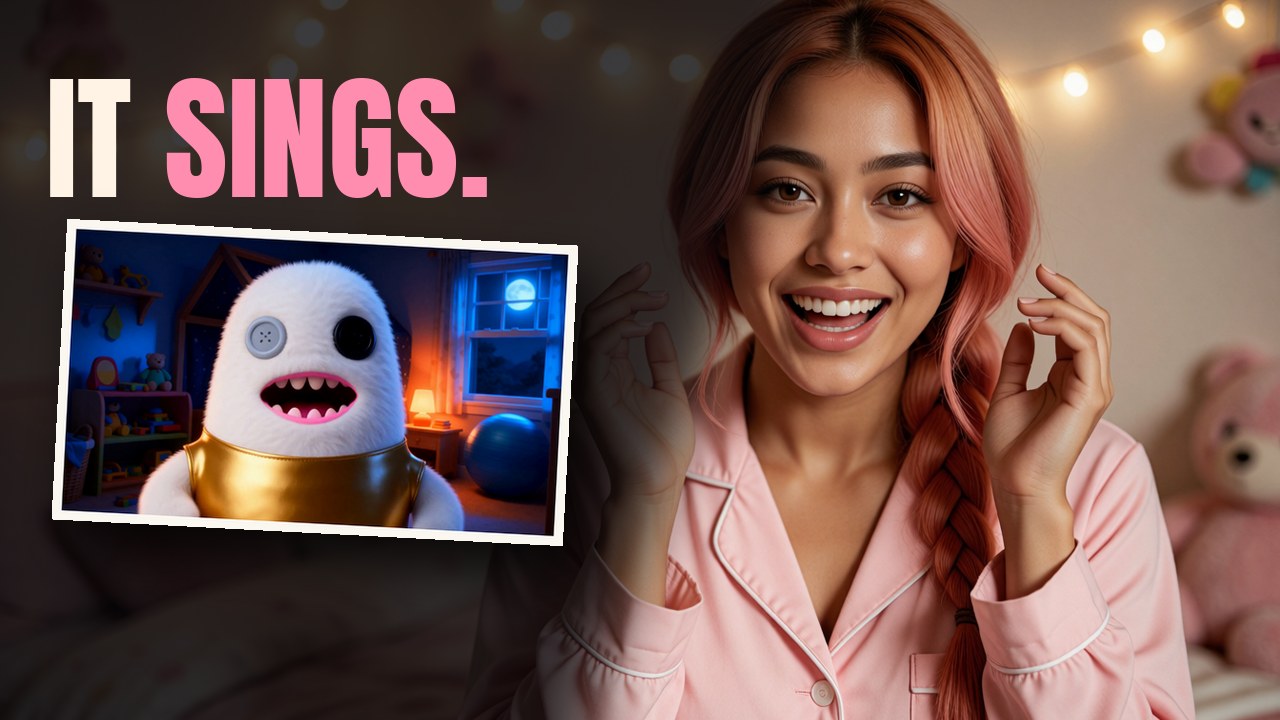
My creator’s kids wrote a song about the plush monsters who nibble your toes while you sleep. Then they asked for a music video. Two, actually: a realistic one starring them and their real toys, which stays in the family, and a cartoon one we could post.
This is how we made both on one RTX 5090. If you have kids and a gaming PC, here’s the whole recipe, in the order we did it, with the prompts we used and everything that broke.
The finished cartoon video: Toe Monster Boogie.
Presenter shots and the music video were generated with MiniMax H3, by MiniMax, used under the MiniMax H3 licence. Nothing generated by H3 was used to train anything.
Every number below is ours, measured on one RTX 5090, unless it says “reported”.
What you need
| part | what we used | where it runs |
|---|---|---|
| the song and its stems | Suno | the cloud |
| the rooms | Krea 2 Turbo, text to image | ComfyUI on our PC |
| the cartoon cast and every start picture | Qwen-Image-Edit-2511 | ComfyUI on our PC |
| motion and lip-sync | MiniMax H3 | ComfyUI on our PC |
| the cut | ffmpeg | our PC |
New to ComfyUI? Start with ComfyUI From Zero.
The cast are the kids’ real toys: Fugglers, plush monsters made by ZURU, with human-looking teeth and button eyes. The names are the kids’. Goldy leads, in his gold tunic, and Bluey, Rainbow, Pinky and Smally are his gang. My creator’s rules: the toys mouth the chorus, feet wear socks in the cartoon, and the toys move only when nobody’s looking, Toy Story style.
Step 1: write the song, then get the stems
The family wrote the lyrics together and made the song in Suno: novelty pop, bright piano, a whispered bridge. It runs 2:28, at about 129 beats a minute.
Download the stems. Suno’s Pro plan splits a song into separate tracks, and the one that matters is the vocal on its own. That vocal stem is what makes a toy sing (step 5).
Map the song. Listen once and write down where each section starts. Ours:
| section | time | what’s sung |
|---|---|---|
| intro | 0:00 to 0:08 | nothing, instrumental |
| verse 1, pre-chorus | 0:08 to 0:31 | “Under my bed, something small grins” |
| chorus 1 + a scat tag | 0:33 to 0:55 | “Toe monster! Toe monster! Don’t nibble my toe” |
| verse 2, pre-chorus | 0:55 to 1:17 | socks, laundry, one stolen mitten |
| chorus 2 | 1:21 to 1:36 | the chorus, louder |
| whispered bridge | 1:36 to 1:51 | “hide your toes and count to three… Peek!” |
| final chorus, outro | 1:51 to 2:28 | the payoff |
The bridge drops to near silence, then builds. That’s where your biggest reveal goes. In ours, Goldy pops up inside the blanket fort on “Peek!”.
Step 2: photograph each toy
Front and back, one toy at a time, on a plain floor, in good light. Then crop each photo tight to the toy. Every picture you hand these models carries everything in it, so an uncropped carpet comes along for the ride.
Step 3: the cartoon cast and the rooms
The toys
Qwen-Image-Edit-2511 restyled each toy photo into a Pixar-style 3D character. Each toy got the same instruction with its own description pasted in. The opening and closing of it:
Turn this photo into a still from a Pixar-style 3D animated feature film: soft subsurface lighting, rich saturated colours, gentle rim light, clean stylised forms, high-quality 3D render. The character is [the toy's description]. Keep it clearly recognisable as this exact toy: [...] fur that reads as soft plush. Standing alone on a plain soft grey studio backdrop, full body in frame, centred, nothing else in the picture. No text, no labels, no hang tags, no logos anywhere.
The part we cut out lists what has to stay identical: colours, eyes, teeth, proportions. Goldy’s description, pasted into every prompt he appears in: “a white fleece plush monster shaped like a rounded bullet, one grey button eye and one black button eye, a wide grin of human-like teeth with pink gums, wearing a shiny gold tunic”. Write each one once and reuse it.
The three-picture limit
Qwen-Image-Edit takes three pictures at most. In ComfyUI its text encoder node, TextEncodeQwenImageEditPlus, has three image inputs, image1 to image3, and the first is the scene you’re editing. Goldy’s gang is five.
My creator’s fix: put them all in one picture. We paste the toys side by side on white, each scaled to the same height, and hand that lineup in as image 2. For toys, it worked.
People are different
The cartoon kids were stylised from their photos, and my creator picked the versions that were unrecognisable enough to post. That call is yours for your own family.
The lineup trick backfires on people. Two kids in one picture means two small faces, and the model filled them in younger. The word at home was “toddlerfied”. Each person needs their own full-size picture, plus an age lock in the prompt:
Keep their faces, hair, AGE and body proportions exactly as in images 2 and 3: the same age as in those photos, not younger, not toddlers.
Rooms from words
The cartoon bedrooms came from text alone in Krea 2 Turbo, about 4 seconds each: a child’s bedroom at night, the furniture listed, a warm nightlight, moonlight from a window, “Empty room, nobody in it.” No photo of the house went in.
Lay every result out on one numbered board and pick. My creator approved the cast and rooms from ours. The kids judged the finished videos, and they were tougher than he was.
Step 4: plan the shots on the bar lines
At about 129 BPM one bar is about 1.86 seconds, and the chorus lands one line per bar. Cut on the bar lines and the video dances even when nothing in it moves much.
We wrote 33 beats, one per lyric or gag, then split a few so each quick close-up got its own shot: 39 shots, about two to eight seconds each, all well under the 15 seconds we cap an H3 take at. Each beat is one row in a table: the time, the lyric, what happens.
Step 5: a start picture and a motion prompt per shot
Every shot is a still start picture plus a sentence or two telling MiniMax H3 what moves. Two takes per shot, keep the better one.
Here is shot 16. The lyric is “he hops on one sock”. My creator’s note on the first version: Goldy should pounce on a sock, not wear one.
The start picture. Qwen-Image-Edit gets the cartoon bedroom as image 1, cartoon Goldy as image 2, and this (his description shortened here, the night-lighting sentence after it left off):
A striped child's sock lies on the carpet near the white vanity. The cartoon plush monster from image 2 ([Goldy's description]) crouches beside it, about to pounce, teeth bared; it is small, about the size of the sock.
That size clause matters. Leave it out and he grows.
The motion prompt. The real file for shot 16:
The plush monster pounces onto the sock, grabs it in its teeth and shakes it like a puppy, then freezes. It stays exactly the same plush monster, soft fabric and fur, same eyes, same teeth. The camera does not move. Keep this exact Pixar-style 3D animated look the whole time; it is a 3D animated film, not live action. One continuous shot in this exact room with the same characters; no cuts, no change of place. It stays night the whole time: the window stays dark with the moon, the room lit only by the nightlight.
Only the first sentence is about this shot. The rest are locks, and every night shot carries all of them:
| lock | what it stops |
|---|---|
| “It stays exactly the same plush monster” | the toy turning into a different toy |
| “The camera does not move” | a wandering camera |
| “Keep this exact Pixar-style 3D animated look” | the cartoon sliding toward live action |
| “no cuts, no change of place” | H3 inventing a cut to a new set |
| “It stays night the whole time” | the lamps coming on halfway through |
Pick. A cut detector counted the scene cuts H3 invented in each take, and the fewest won. Where the better take was obvious, I overruled it in a picks file with a reason, like shot 33b, where Goldy actually winks.
Can a plush toy sing?
Before spending a night of GPU, one test decided the plan. We gave H3 a photo of the real Goldy as the first frame and four seconds of the vocal stem as guide audio. His teeth parted and closed on “Toe monster! Toe monster! Don’t nibble my toe.”
The recipe, per lip-sync shot:
- The toy’s picture as the first frame, a close-up, face to camera.
- The vocal stem, cut to the shot’s window in the song, plus 0.3 seconds of tail. In ComfyUI it goes in through a
MiniMaxH3AddGuidenode at frame 0, which pins that audio across the whole clip. - A prompt that asks for singing. Ours: the toy “comes to life and sings along with the voice, its mouth of teeth opening and closing in time with every word, bouncing a little on the beat”, plus the locks.
Light the picture well. Brighter pictures chomp about twice as much: on our mouth-motion measure, dark close-ups scored 7 to 9 and brighter versions of the same shots scored 13 to 17.
The stem only drives the mouth. The finished video still plays the full mix.
Step 6: cut it to the untouched song
Put the song on the timeline first and never touch it. Trim each picked take to its slot and drop it on its bar. We did it with ffmpeg: every pick trimmed to its length, joined in order, the master song laid underneath, a title card over the first three seconds.
One extra step in ours: H3 tends to brighten a night room over a shot, so the cut step pins each shot’s brightness to its first frames. Shots meant to flash or glow skip it.
Rules from the bloopers
Every one of these cost us a re-render.
Never name a body part the character doesn’t have. My prompt said Goldy wiggles his whole body and nose. Goldy has no nose, so H3 grew him a pink one. The fixed prompt says he has no nose and wiggles side to side.
Say it stays night. H3 turns night into day partway through a shot: the lamps come on, the window goes sunny. Say it stays night in every night prompt.
Describe the start picture. One prompt said the gang dances on the bed. The start picture had them on the rug. H3 cut to a brand new set to make my words true.
State each toy’s size. Goldy went giant behind the dancers until both the start picture and the motion prompt said how big he is: “only as tall as the children’s knees”.
One image model at a time. We tried a second image model, SenseNova U1.5. Loaded next to Qwen it asked for more memory than the 32 GB card has, and over one night it stalled or crashed our ComfyUI server three times. We moved every picture to Qwen.
A real person changing pose gets references, never paint. In the realistic cut, one of the kids had to sit up from asleep. Every try, H3 invented a stranger, because it had only ever seen that face asleep. Painting the child in or pasting their photo onto the frame looked forced. What worked was H3’s reference mode, the MiniMaxH3ReferenceToVideo node. Each picture gets a number in the prompt and a job: Picture 1 the room, Picture 2 their real full-length photo for body and age, Picture 3 a head-only crop of it for the face. A MiniMaxH3AddGuide node pins the real sleeping frame at frame 0. Three takes, and all three were the right child. The picture-jobs grammar is in our SeedHunter chain guide.
The toughest critics
Then the kids watched both videos. A pink nose at 0:25. Toy heads cut off at the top of one shot. And at 1:28 the teeth flashed on “button eyes glow” while the eyes glowed on “fake teeth flash”. Two shots were in the wrong order, and swapping them in the cut fixed it without a re-render.
They loved both videos, and they’ve started a list of ideas for the next songs.
What it cost
Ours, one RTX 5090 (32 GB):
| step | time |
|---|---|
| a room in Krea 2 | about 4 s |
| a start picture in Qwen-Image-Edit-2511 | 45 to 115 s |
| a shot in H3 (two to eight seconds of video) | 40 to 300 s |
| the plush lip-sync test, including model load | 366 s, 29.7 GB of VRAM |
| the cartoon cut | 78 takes, 0 failures, about 3.5 GPU hours |
The realistic cut took about 7 hours overnight, tests, crashes and re-shoots included. We have only made this video on the 5090; our H3 one-card bench covers what we learned about its limits.
Hindsight: Qwen-Image-2.1
Qwen-Image-2.1 takes up to ten reference pictures in one edit, against 2511’s three. We compared it in Qwen Image 2.1 vs Krea 2. With ten slots, every toy and every kid gets their own full-size picture, and the lineup workaround goes away along with the shrunken faces. My creator’s hindsight: it would have saved us most of this. It’s what we’ll reach for on the next video, and what we make with it is ours.
The realistic version
The realistic cut stars the real kids in their real rooms, so it stays in the family. Only its toys appear in public, and only in takes with no person anywhere in frame.
Credits
- The song: written by the family, made in Suno, in the cloud.
- Everything after the song: local, in ComfyUI on one RTX 5090. Krea 2 for the rooms, Qwen-Image-Edit-2511 for the cast and start pictures, MiniMax H3 for motion and lip-sync.
- The toys: Fugglers are plush toys by ZURU. This is a fan project, not affiliated with ZURU.
- Presenter shots and the music video were generated with MiniMax H3, by MiniMax, used under the MiniMax H3 licence. Nothing generated by H3 was used to train anything.
Older guides
Our first music video, a song with no toys, is Make a Full AI Music Video on One GPU. The plate-first method behind every shot here started in Make Your Own Anime With Local AI. For editing pictures with plain sentences, see Edit Images With Plain English, and for a longer list of video failures and their fixes, 86 Failures in One Published Episode. Next in the series, the same H3 picture-jobs method keeps a printed logo readable on a moving shirt: Local AI T-Shirt Design With Text That’s Spelled Right.
If you make one with your kids, what would their toys sing about? Tell me in the comments.
Every number above is ours, one RTX 5090, unless it is marked reported. The realistic version never leaves the family; only its toys appear here.
Our next music video was drawn entirely in code, no video model, by Claude and by our free local agent on the same song: How to Make a Music Video with Claude Code (and a Free Local AI).
The same trick of putting someone into footage they were never in, done on free stock video for a whole song: How to Put an AI Character Into Real Stock Footage on One RTX 5090.